
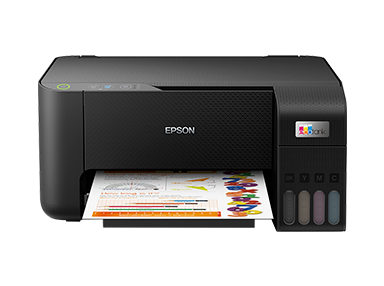
To reset your Epson L3116 printer’s waste ink pad counter, you can use the Epson Adjustment Program (commonly referred to as a “resetter”). The L3116 shares hardware similarities with models like the L3110, so resetter tools designed for the L3110 are often compatible with the L3116.
Contents
🔧 How to Use the Epson L3116 Resetter
1. Download the Resetter Tool:
You can obtain the resetter from various sources. One such source is the Epson L3110 Resetter available on SourceForge. Please ensure you download from reputable sources to avoid potential security risks.
2. Extract the Files:
The downloaded file is typically in ZIP or RAR format. Use extraction tools like WinRAR or 7-Zip to extract the contents.
3. Run the Adjustment Program:
Locate and run the Adjprog.exe file from the extracted contents.
4. Select Your Printer Model:
In the program, click on “Select” and choose “L3110” as the model. Even though you’re using an L3116, this selection is appropriate due to the models’ similarities.
5. Reset the Waste Ink Pad Counter:
- Click on “Particular Adjustment Mode.”
- Select “Waste Ink Pad Counter” and click “OK.”
- Check the boxes for “Main Pad Counter” and “Platen Pad Counter.”
- Click “Check” to view the current counter values.
- Click “Initialize” to reset the counters.
- After the process completes, turn off your printer, wait a few seconds, and then turn it back on.
Password: sbz
Epson Resetter:
Video Tutorial
For a visual guide on resetting the Epson L3210 printer, you can watch the following video:
Download Other Resetter
- Epson L3210 Resetter
- Epson L380 Resetter
- Epson L3110 Resetter
- Epson L3115 Resetter
- Epson L3116 Resetter
- Epson L3150 Resetter
- Epson L3160 Resetter
- Epson L360 Resetter
- Epson L220 Resetter
- Epson L210 Resetter
- Epson L405 Resetter
- Epson L805 Resetter
- Epson L4150 Resetter
- Epson L4160 Resetter
- Epson L120 Resetter
- Epson PM235 | PM245 Resetter
- Epson L810 | L850 Resetter
⚠️ Important Considerations
- Antivirus Software: Some antivirus programs may flag the resetter tool as a potential threat. If this occurs, you might need to temporarily disable your antivirus software during the reset process. Remember to re-enable it afterward.
- Usage Frequency: Frequent resets can lead to ink overflow, potentially damaging your printer. Use the resetter only when necessary.
- Physical Maintenance: Resetting the counter doesn’t physically empty the waste ink pad. Over time, the pad can become saturated. Consider replacing or cleaning the pad periodically to prevent ink leakage.
- Official Support: Epson does not officially distribute resetter tools to the public. Using third-party resetters may void your warranty or violate terms of service. Proceed with caution and at your own risk.
- Anza Energy Football shoes
- Anza Zomba football boots
- Free recharge agent with high margin
- Top 5 Free Responsive Bootstrap 5 HTML5 Admin Template
- DarkPan – Free Bootstrap 5 Admin Dashboard Template
- Sneat – Free Responsive Bootstrap 5 HTML5 Admin Template
- Mazer – Free Bootstrap 5 HTML5 Admin Dashboard Template
- KaiAdmin – Free Responsive Bootstrap 5 Admin Dashboard Template
- DattaAble – Free Responsive Tailwind CSS Admin Template
- QR Code Generator – Customizable QR Codes with Logo